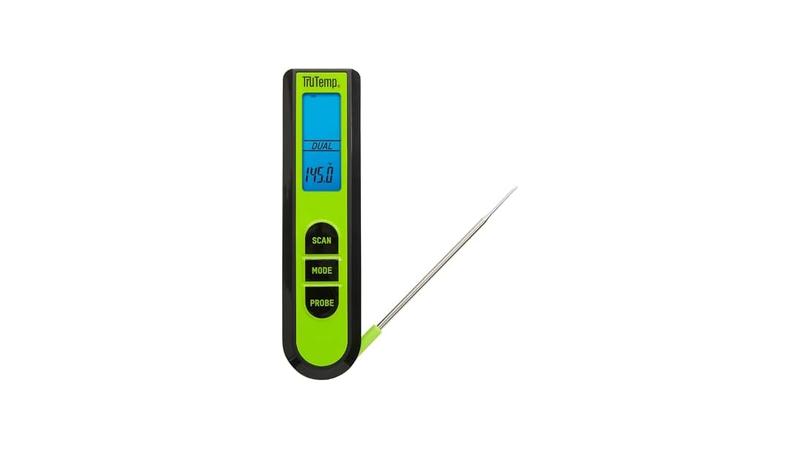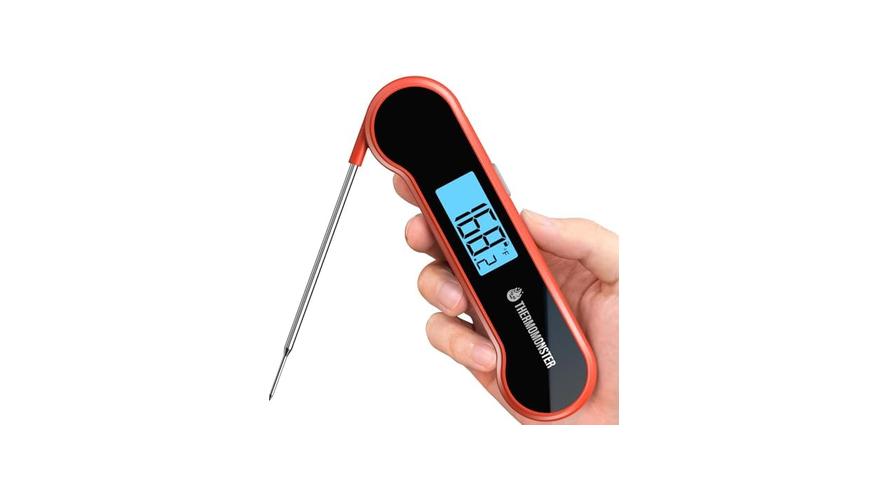

Sometimes, your smart meat thermometer app might stop talking to your device, and you’re left wondering what to do. It can feel a bit tricky when this happens, especially if you’re new to using these gadgets. But don’t worry!
We’re here to help you get your food cooked just right. We’ll walk you through a simple Meat Thermometer App Not Working Fix step-by-step. Get ready to learn how to solve common issues so you can get back to enjoying perfectly cooked meals.
Troubleshooting Your Meat Thermometer App
This section will help you figure out why your meat thermometer app might not be working right. We’ll go over common reasons this happens and how to fix them. This way, you can get your app talking to your thermometer again without too much fuss.
We’ll start with the basics and move to slightly more involved steps.
Checking the Basics
Before we get too deep, let’s make sure everything is set up correctly. Sometimes, the simplest things are overlooked. This part is all about making sure your phone and thermometer are on the same page.
Bluetooth Connection
Your meat thermometer usually talks to your phone using Bluetooth. If the Bluetooth on your phone is off, the app won’t be able to find the thermometer. It’s like trying to talk to someone without speaking.
Make sure Bluetooth is switched on in your phone’s settings.
The thermometer also needs to have its Bluetooth turned on and be discoverable. Most thermometers have a button or a setting to turn on Bluetooth. Check your thermometer’s manual if you’re not sure how to do this.
A blinking light often means it’s ready to connect.
- Ensure Bluetooth is Enabled: On your smartphone or tablet, go to the settings menu. Look for the Bluetooth option and make sure it’s toggled on. A clear indicator will show that Bluetooth is active.
- Check Thermometer’s Bluetooth Status: Most meat thermometers will have an indicator light that shows when Bluetooth is active and trying to connect. Refer to your thermometer’s user guide to understand what its specific lights mean.
- Keep Devices Close: Bluetooth has a limited range. For the best connection, keep your smartphone and your meat thermometer within a few feet of each other. This reduces the chances of signal interference.
App Permissions
Apps often need certain permissions to work properly. For a meat thermometer app, it might need access to your location or Bluetooth services. If these permissions are denied, the app can’t communicate with the thermometer.
Go into your phone’s app settings and find the meat thermometer app. Look for a section on permissions. Make sure Bluetooth and, if needed, Location services are allowed.
This step is often the fix for many connectivity problems.
- Grant Necessary Permissions: For the app to function, it requires specific access. Navigate to your phone’s settings, find the specific app, and allow it to access features like Bluetooth and location services.
- Location Services Importance: Some apps use location services to help scan for nearby Bluetooth devices, even if they don’t directly use your location for tracking. Enabling this can improve the app’s ability to find your thermometer.
- Re-granting Permissions: If you previously denied permissions, you might need to go back and grant them. Sometimes, apps lose their permissions after an update or a phone restart.
App and Device Updates
Software updates are released to fix bugs and improve performance. If your app or your phone’s operating system is outdated, it might cause problems with your meat thermometer app.
Updating the Meat Thermometer App
Check your phone’s app store (like Google Play Store for Android or Apple App Store for iOS) for updates to your meat thermometer app. If an update is available, download and install it. Developers often release fixes for common issues in new versions.
An updated app can mean better compatibility with your phone and the thermometer. It might also include new features or improve how the app connects. Always keep your apps updated for the best experience.
- Regular App Store Checks: Make a habit of checking your device’s app store for updates to your meat thermometer application. Developers frequently release patches that can resolve connectivity or performance issues.
- Automatic Updates: Most app stores offer an option for automatic updates. Enabling this ensures you always have the latest version of the app without having to manually check.
- Update Benefits: Beyond fixing bugs, app updates can also bring new features, improve user interface, and enhance security, making the overall experience smoother and more reliable.
Updating Phone’s Operating System
Similarly, your phone’s operating system needs to be up-to-date. An older OS might not support the latest features of your thermometer app or the Bluetooth protocols used for connection.
Go to your phone’s settings and look for software updates. If a new version of your phone’s OS is available, download and install it. This can resolve many underlying issues that affect how apps communicate with hardware.
- Check for OS Updates: In your phone’s settings, find the system or software update section. Look for any available updates for your device’s operating system.
- Why OS Updates Matter: Operating system updates often include improvements to how your device handles wireless connections, power management, and overall system stability, which can indirectly affect app performance.
- Backup Before Updating: It’s a good practice to back up your phone before a major operating system update. This ensures that if anything goes wrong, you can restore your data.
Restarting Devices
This might sound simple, but restarting your devices can fix a lot of glitches. It’s like giving them a fresh start.
Restarting Your Meat Thermometer
Turn your meat thermometer off completely, wait a few seconds, and then turn it back on. Some thermometers might have a specific reset button or procedure. Check your manual for instructions.
A simple restart can clear temporary memory issues or minor software hiccups that might be preventing a stable connection. It’s a quick and easy first step when troubleshooting.
- Power Cycle the Thermometer: Turn the meat thermometer completely off. Wait for about 30 seconds, then turn it back on. This process can clear temporary glitches in its internal memory.
- Check for Reset Button: Some models may have a small reset button that requires a pin to press. Consult your device’s manual to see if this is an option.
- Battery Check During Restart: While restarting, it’s also a good time to check or replace the batteries if your thermometer uses them. Low battery power can sometimes cause strange behavior.
Restarting Your Smartphone/Tablet
Just like the thermometer, restarting your phone or tablet can resolve temporary software issues that might be affecting Bluetooth or app performance.
Turn off your phone completely, wait a moment, and then power it back on. Once your phone has fully booted up, try opening the meat thermometer app again and see if it connects.
- Reboot Your Mobile Device: Turn your smartphone or tablet off and then back on. This simple step can resolve many minor software conflicts that might be preventing the app from working correctly.
- Clear App Cache After Restart: After restarting your phone, you might also consider clearing the cache for the meat thermometer app in your phone’s settings. This can remove temporary files that might be causing problems.
- Test Connection Immediately: Once both devices are back online, try to establish the connection between the thermometer and the app right away to see if the restart has fixed the issue.
Advanced Troubleshooting Steps
If the basic steps haven’t solved your problem, we can move on to some more advanced solutions. These involve looking deeper into how the app and your devices communicate.
Forgetting and Re-pairing Bluetooth Devices
Sometimes, the Bluetooth connection itself can become corrupted. Removing the old connection and creating a new one can often fix this.
Unpairing the Thermometer from Your Phone
Go into your phone’s Bluetooth settings. Find your meat thermometer in the list of paired devices. Select it and choose the option to “Forget” or “Unpair” the device.
This removes the old connection profile.
Once unpaired, you’ll need to put your thermometer back into pairing mode. Then, you can search for it again in your phone’s Bluetooth settings and pair it as if it were a new device.
- Remove Previous Pairing: In your phone’s Bluetooth settings, locate the name of your meat thermometer. Tap on it and select the option to “Forget Device” or “Unpair.”
- Reset Thermometer’s Pairing Mode: Follow your meat thermometer’s manual to put it back into its initial pairing mode. This usually involves pressing and holding a button.
- Scan for New Devices: With the thermometer in pairing mode, go back to your phone’s Bluetooth settings and initiate a scan for new devices. Your thermometer should appear in the list to be connected again.
Reinstalling the Meat Thermometer App
If forgetting the device didn’t work, the problem might be with the app itself. Uninstalling and then reinstalling the app can provide a clean slate.
First, uninstall the meat thermometer app from your phone. Then, go to your app store and search for it again. Download and install the latest version of the app.
After installation, set up the connection again.
- Remove the Application: Go to your phone’s settings, find the meat thermometer app, and choose the uninstall or remove option. This deletes all its associated data.
- Download Fresh Copy: Visit your device’s app store (Google Play Store or Apple App Store) and search for the meat thermometer app. Download and install the newest version.
- Re-establish Connection: After reinstalling, open the app and follow the on-screen instructions to connect your meat thermometer, ensuring all permissions are granted during setup.
Checking Thermometer Probe and Cables
The probe is what actually measures the temperature. If the probe or its cable is damaged, it won’t send accurate readings to the thermometer unit or the app.
Inspecting the Probe
Carefully examine the metal probe for any signs of damage, such as bending, kinks, or rust. Also, check where the probe connects to the thermometer unit. Make sure it’s plugged in securely and there’s no visible damage to the port.
A damaged probe can cause erratic temperature readings or no readings at all. If you see any damage, the probe might need to be replaced. Many manufacturers sell replacement probes separately.
- Visual Inspection of Probe: Carefully look over the entire length of the meat probe. Check for any bends, kinks, fraying wires, or signs of corrosion on the metal.
- Connection Point Check: Examine where the probe cable plugs into the main thermometer unit. Ensure the connection is firm and free from any debris or damage to the port itself.
- Probe Functionality Test: If possible, try testing the probe with a different compatible thermometer unit or by performing a simple ice-water test (0°C or 32°F) to see if it registers a stable temperature.
Checking Cable Integrity
The cable connecting the probe to the thermometer unit is also important. Look for any cuts, nicks, or damage to the cable’s outer insulation. A damaged cable can interrupt the signal.
Make sure the cable isn’t being pinched or stressed. If the cable is damaged, it’s usually best to replace the probe assembly. This is a common point of failure because it’s often moved around.
- Examine Cable Insulation: Run your fingers along the entire length of the probe’s cable, looking for any cuts, abrasions, or exposed wires. The outer sheath protects the delicate internal wiring.
- Avoid Strain or Pinching: Ensure the cable is not being stretched, kinked, or pinched between surfaces, especially during cooking or storage. Consistent stress can lead to internal breaks.
- Consider Replacement if Damaged: If the cable shows any signs of significant damage, it’s often safer and more effective to replace the entire probe. A faulty cable can lead to unreliable temperature readings.
Understanding Meat Thermometer App Connectivity
Let’s talk a bit more about how these apps and thermometers connect. Knowing the technology helps when something goes wrong.
Bluetooth Low Energy (BLE)
Most modern meat thermometers use Bluetooth Low Energy, often called BLE. This type of Bluetooth is designed to use very little power, which is great for battery-operated devices like thermometers.
BLE works by creating short-lived connections. The thermometer “advertises” its presence, and your phone “listens” for these advertisements. When they find each other, they establish a connection to send temperature data.
This technology allows for long battery life and quick pairing.
- Power Efficiency: BLE is specifically designed to consume minimal power, allowing devices like meat thermometers to operate for extended periods on small batteries.
- Connection Mechanism: Devices using BLE regularly broadcast their availability, and other nearby devices can scan for these broadcasts to initiate a connection.
- Data Transfer: Once connected, BLE enables a stable, albeit sometimes limited in speed, channel for transferring small amounts of data, such as temperature readings, from the thermometer to the app.
Signal Interference
Like any wireless signal, Bluetooth can be affected by interference. Other electronic devices, thick walls, or even certain types of metal can disrupt the signal between your thermometer and your phone.
If you’re experiencing connection drops, try moving closer to your thermometer or away from other electronic devices that might be causing interference. Sometimes, simply repositioning yourself or the devices can solve the problem.
- Sources of Interference: Common sources include other wireless devices like Wi-Fi routers, microwaves, and even other Bluetooth devices operating nearby. Metal objects can also block or reflect signals.
- Reducing Interference: To minimize interference, try to keep your phone and thermometer in close proximity and away from potential signal disruptors. Avoid placing the thermometer near large metal appliances.
- Impact on Range: Signal interference can significantly reduce the effective range of your Bluetooth connection, leading to dropped signals even if you are within the theoretical maximum distance.
Device Compatibility
Not all apps work with all phones, and not all thermometers work with all apps. It’s important to check that your meat thermometer is compatible with your specific smartphone model and operating system version.
Manufacturers usually list compatibility information on their product packaging or website. If your phone is too old or your operating system is not supported, the app might not install or function correctly. This is a key factor in avoiding the Meat Thermometer App Not Working Fix headaches.
- Check Manufacturer Specifications: Always consult the product documentation or the manufacturer’s website for a list of compatible smartphone models, operating systems (iOS/Android versions), and device requirements.
- Operating System Versions: Ensure your phone’s operating system is within the range supported by the app. Older OS versions may not have the necessary features or security protocols.
- App Store Requirements: The app store description for the thermometer app will typically list the minimum requirements for installation, including compatible OS versions.

Real-Life Scenarios and Solutions
Let’s look at some common problems people face and how they get them fixed.
Scenario 1: The App Can’t Find the Thermometer
You’ve turned on your thermometer and opened the app, but it says “No device found.”
- First, double-check that Bluetooth is on for both your phone and the thermometer.
- Make sure the thermometer is in pairing mode. Usually, there’s a light that blinks to show this.
- Try turning Bluetooth off and then back on for your phone.
- If that doesn’t work, unpair the thermometer from your phone’s Bluetooth settings and try pairing it again.
- As a last resort, uninstall and reinstall the app.
Scenario 2: Temperature Readings Are Inconsistent
The app connects, but the temperature readings jump around or seem wrong.
- Check the probe and cable for any damage. A bent probe or frayed cable can cause issues.
- Make sure the probe is fully inserted into the meat.
- Move the thermometer unit closer to the probe, or move yourself and your phone closer to the thermometer unit to rule out signal problems.
- If the probe looks fine, try testing it with a cup of ice water to see if it reads around 32°F (0°C) or boiling water around 212°F (100°C).
- If readings are still bad, the probe might be faulty and need replacement.
Case Study: The Weekend BBQ Mishap
John was grilling for a party and his smart meat thermometer app refused to connect. He had used it successfully before. Frustrated, he almost gave up and used his old dial thermometer.
After checking the basics, he realized his phone’s Bluetooth had been turned off accidentally when he was trying to save battery earlier. He simply turned Bluetooth back on, and the app instantly found his thermometer. The burgers cooked perfectly.
This showed him the importance of checking the simplest things first.
Case Study: The Overcooked Turkey Problem
Sarah was cooking Thanksgiving turkey and her thermometer app kept disconnecting. She was worried about undercooking it, but the constant disconnections made it impossible to monitor. She tried moving her phone closer, restarting the app, and even restarting her phone.
Finally, she checked the app’s permissions in her phone settings. She discovered that the app had lost its Bluetooth permission during a recent phone update. Once she re-granted the permission, the connection stayed stable, and the turkey was cooked perfectly to her desired temperature.
These situations highlight that the Meat Thermometer App Not Working Fix often involves simple checks and understanding how the technology works together.
When to Contact Support
If you’ve tried all the troubleshooting steps and your meat thermometer app still isn’t working, it’s time to reach out for help.
Manufacturer Support
Most manufacturers of meat thermometers offer customer support. They can provide specific advice for their products and may be able to diagnose issues remotely.
Check the product packaging or the manufacturer’s website for contact information, such as a support email, phone number, or online chat. Be ready to describe the problem and the steps you’ve already taken.
- Locate Contact Information: The manufacturer’s official website is the best place to find customer support contact details. Look for sections like “Support,” “Contact Us,” or “Help.”
- Provide Detailed Information: When contacting support, be prepared to share your thermometer’s model number, the app version you’re using, your phone’s model and operating system, and a clear description of the problem and troubleshooting steps you’ve attempted.
- Warranty Check: If your device is still under warranty, mentioning this to the support team can expedite solutions, potentially leading to a repair or replacement.
App Developer Support
If the issue seems to be specifically with the app, contacting the app developer might be necessary. They are the ones who create and maintain the software.
You can usually find contact information for the app developer within the app’s description in the app store. They can offer insights into known bugs or provide a patch in future updates.
- App Store Information: Developer contact details are typically found in the app’s listing on the Google Play Store or Apple App Store.
- Reporting Bugs: If you believe you’ve found a bug, reporting it to the developer is crucial. This helps them improve the app for all users.
- Alternative Apps: In some cases, if an app is no longer supported or has persistent issues, the developer might suggest alternative compatible applications.
Frequently Asked Questions
Question: Why does my meat thermometer app keep disconnecting?
Answer: Disconnecting can happen due to Bluetooth interference, weak signal range, outdated app or phone software, or issues with the Bluetooth pairing itself. Ensure devices are close, try forgetting and re-pairing the thermometer, and check for software updates.
Question: Can I use my meat thermometer without the app?
Answer: Some meat thermometers have a display on the unit itself and can be used without the app. However, you won’t get features like remote monitoring, alerts, or temperature graphs that the app provides. Check your thermometer’s model to see if it has a standalone display.
Question: How do I know if my probe is broken?
Answer: A broken probe might show erratic temperature readings, no readings at all, or a specific error message. Visually inspect it for damage like kinks or cuts. Testing it with ice water or boiling water can also reveal if it’s not functioning correctly.
Question: My phone can’t find my thermometer at all. What’s wrong?
Answer: This usually means either Bluetooth is off on one of the devices, the thermometer isn’t in pairing mode, or there’s a strong interference. Double-check your phone’s Bluetooth settings, ensure the thermometer is discoverable, and try restarting both devices.
Question: Is it safe to use a meat thermometer app that has bad reviews?
Answer: It’s generally best to use apps with good reviews. Bad reviews often point to consistent problems like poor connectivity, bugs, or unreliable readings. If an app has many negative comments about not working, it might be risky to rely on for cooking.
Wrap Up
Getting your meat thermometer app working again is usually a simple fix. Check your Bluetooth, restart your devices, and update your software. If you still have trouble, try re-pairing or reinstalling the app.
With these steps, you should be back to perfectly cooked food.