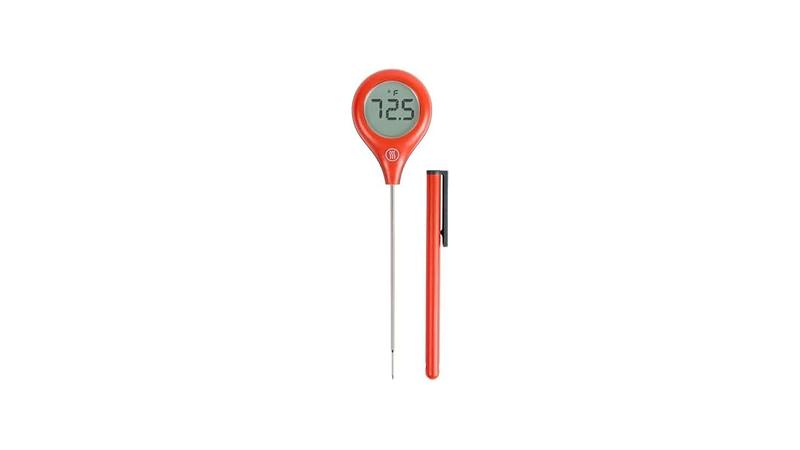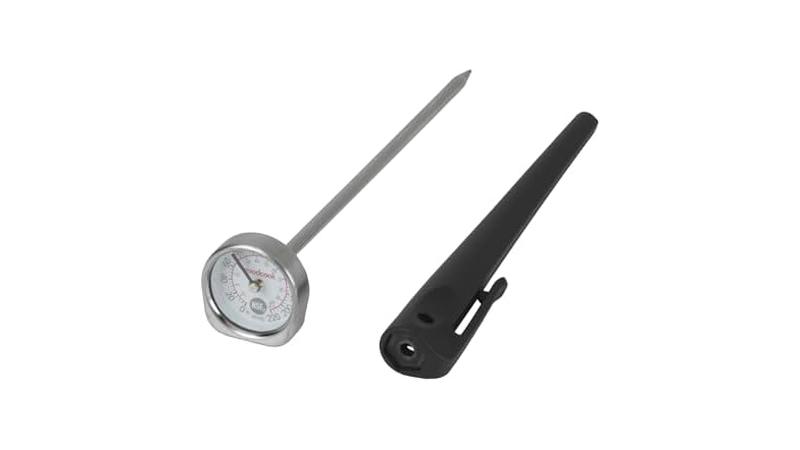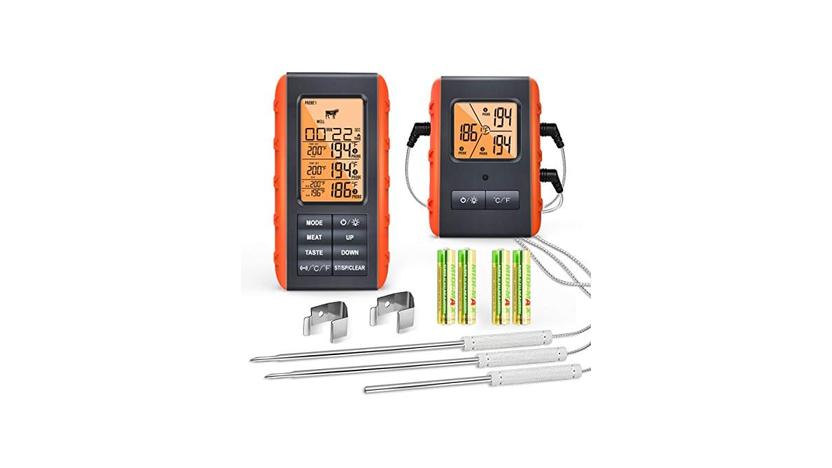

It’s super frustrating when your Bluetooth Meat Thermometer Not Connecting. You’re ready to cook that perfect steak or roast, and the app just won’t see your thermometer. This is a common hiccup, especially when you’re new to these gadgets, because there are a few small things that can go wrong.
But don’t worry! We’ll walk through it step-by-step to get you cooking again in no time. First, let’s look at how these handy devices are supposed to work.
How Bluetooth Meat Thermometers Work
A Bluetooth meat thermometer is a nifty tool that helps you cook meat perfectly. It has a probe that you stick into your food. This probe measures the temperature of the meat.
Then, it sends that temperature reading wirelessly to another device, usually your smartphone or a tablet. This connection happens through Bluetooth technology, which is like a short-range radio wave system. You can then see the temperature on an app, often with helpful cooking guides and alerts.
This lets you step away from the grill or oven and still keep an eye on your food.
The beauty of a Bluetooth meat thermometer is that it removes the guesswork. Instead of cutting into the meat to check if it’s done, you get an accurate temperature reading. This is especially useful for thicker cuts of meat or when you’re cooking for guests and want to get it just right.
The app often allows you to set target temperatures, so you get a notification when your food is ready. This technology is designed to make cooking easier and more enjoyable.
The Core Components
At its heart, a Bluetooth meat thermometer has a few key parts that work together. The main body of the thermometer usually contains the battery, the Bluetooth transmitter, and the processing unit. The probe, which is typically made of stainless steel, has a temperature sensor at its tip.
This sensor is the part that actually measures the heat of the food. Wires connect the probe to the main unit, carrying the temperature data.
The Bluetooth transmitter is what broadcasts the temperature information. Your smartphone or tablet needs to have its own Bluetooth receiver to pick up this signal. The app on your phone acts as the display and control center.
It translates the raw temperature data into a format you can easily read, like degrees Fahrenheit or Celsius. It also lets you set timers and alarms.
The Bluetooth Connection Process
Getting the thermometer to connect to your phone is like introducing two new friends. It’s a process called “pairing.” First, you need to make sure both devices are ready. You turn on the thermometer and open the app on your phone.
The app will then search for nearby Bluetooth devices. When it finds your thermometer, you might need to confirm the connection on both devices. This tells them they are allowed to talk to each other.
Once paired, the devices remember each other. This means next time you turn on the thermometer and open the app, they should connect automatically. This automatic connection is what most people expect.
However, sometimes this pairing step or the automatic reconnecting can be a bit tricky. That’s where some of the common problems start.
Common Reasons for Bluetooth Meat Thermometer Not Connecting
Experiencing a “Bluetooth Meat Thermometer Not Connecting” issue can stem from several simple causes. Often, it’s not a complex technical fault but a small oversight. Things like the thermometer’s battery being low, the Bluetooth on your phone being turned off, or the thermometer not being close enough to your phone can all prevent a connection.
Sometimes, the app might need a quick refresh, or the thermometer itself might just need to be turned off and on again.
These types of issues are very common because Bluetooth relies on a clear, uninterrupted signal. Any interference or a simple setting being out of place can break that link. For beginners, not knowing which of these small steps to check can feel overwhelming.
We’ll go through each of these possibilities so you can find the solution quickly.
Power and Battery Issues
One of the most frequent culprits behind a Bluetooth Meat Thermometer Not Connecting is a lack of power. Thermometers rely on batteries to operate. If the batteries are low or completely dead, the device simply won’t have enough energy to power its Bluetooth transmitter.
This means it can’t send any signal to your phone.
Even if the thermometer lights up or seems to be on, the battery might not be strong enough for the Bluetooth function. Many devices will show a low battery indicator, but some don’t. It’s always a good idea to check the battery status first.
If you’re unsure, try replacing the batteries with fresh ones. This is a quick and easy fix that solves the problem for many people.
Some thermometers use rechargeable batteries. If yours is rechargeable, make sure it has been fully charged. A partial charge might not be enough.
Always refer to your thermometer’s manual to understand its power requirements and how to charge it properly.
Bluetooth Settings on Your Device
Your smartphone or tablet also needs to have its Bluetooth turned on for the connection to happen. It sounds obvious, but it’s easy to forget to toggle it back on after turning it off for other reasons. Also, sometimes the Bluetooth on your phone might be connected to another device, like headphones or a speaker.
This can prevent it from connecting to your new thermometer.
You should check your phone’s settings menu to confirm that Bluetooth is enabled. Look for the Bluetooth icon, which is usually a stylized ‘B’. If it’s off, tap it to turn it on.
If it’s on, try turning it off for about 10-15 seconds and then turning it back on. This can sometimes reset the Bluetooth on your phone and help it find new devices.
If your phone is already connected to multiple Bluetooth devices, you might want to temporarily disconnect from those others. This clears up the phone’s Bluetooth channels. You can then focus solely on pairing with your meat thermometer.
Proximity and Interference
Bluetooth signals have a limited range. Your thermometer needs to be reasonably close to your phone for the connection to be stable. If you’re standing too far away, the signal might be too weak.
Try bringing the thermometer and your phone closer together, ideally within a few feet. This is especially important during the initial pairing process.
Other electronic devices can also interfere with Bluetooth signals. Things like microwaves, Wi-Fi routers, and even other Bluetooth devices can cause interference. If you’re having trouble connecting, try moving away from these potential sources of interference.
Cooking in an open area like a backyard grill can sometimes be better than inside a kitchen with many appliances.
Interference can cause the connection to drop or prevent it from establishing in the first place. Keeping the path between the thermometer and your phone clear of obstructions is also helpful. Walls and large metal objects can block the signal.
App and Software Issues
The app that comes with your thermometer plays a big role. Sometimes, the app itself might have a bug or needs to be updated to work with the latest version of your phone’s operating system. An outdated app can lead to connectivity problems.
Always check your phone’s app store (like Google Play Store for Android or the App Store for Apple) for any available updates for your thermometer’s app. Installing the latest version can resolve many known issues. If the app is already up to date, sometimes simply closing the app completely and reopening it can help.
To do this, you usually swipe up from the bottom of the screen on a phone and then swipe the app card away.
In some cases, uninstalling the app and then reinstalling it can fix persistent problems. This gives the app a fresh start on your device. Remember to note down any custom settings you might have before uninstalling, so you can reapply them.
Pairing Problems
The initial pairing process is crucial. Sometimes, the thermometer and phone might fail to pair correctly. This can happen if one device isn’t in pairing mode or if there was an interruption during the pairing attempt.
If you suspect a pairing issue, you might need to “unpair” the devices and then try pairing them again.
On your phone’s Bluetooth settings, you should see a list of devices that have been paired before. Find your meat thermometer in that list. There should be an option to “forget” or “unpair” the device.
Once you’ve done that, put your thermometer back into pairing mode (check its manual for how to do this) and try the pairing process from scratch using the app.
Sometimes, restarting both your phone and the thermometer before attempting to pair again can clear any temporary glitches that are preventing a successful connection.
Troubleshooting Steps for Bluetooth Meat Thermometer Not Connecting
When you face a Bluetooth Meat Thermometer Not Connecting situation, a systematic approach can help you pinpoint and fix the problem. Instead of getting frustrated, follow these steps one by one. Each step is designed to address the most common causes for connection issues.
By working through them, you’ll likely find the solution and get back to enjoying stress-free cooking.
Remember to check the basics first. Often, the simplest solution is the correct one. Don’t skip any steps, even if they seem too simple.
What might seem obvious to one person could be the overlooked detail for another.
Step 1: Check Power and Batteries
This is the very first thing to check. Ensure your Bluetooth meat thermometer has fresh, fully charged batteries. If it’s a battery-powered device, take out the old batteries and insert new ones.
Make sure they are inserted correctly, paying attention to the positive (+) and negative (-) ends.
If your thermometer is rechargeable, plug it in and let it charge for the recommended time. Some devices may show a charging indicator light. Make sure this light confirms it’s actually charging.
If the battery has been depleted for a long time, it might take a while before it shows signs of charging.
A low battery can cause intermittent connection issues or prevent the Bluetooth signal from being strong enough to reach your phone. Replacing or recharging the battery is the easiest fix and solves many problems.
Step 2: Verify Phone’s Bluetooth is On and Clear
Go into your smartphone’s settings menu and confirm that Bluetooth is switched on. If it is, try switching it off for about 15 seconds, then switch it back on. This simple refresh can sometimes clear up connection glitches on your phone.
Check if your phone is connected to other Bluetooth devices. If it is, try disconnecting from them. Your phone can only actively connect to a limited number of devices at once for data transmission.
Having too many active connections can interfere with the thermometer’s ability to connect.
You can usually see a list of paired devices in your Bluetooth settings. If your thermometer is listed but not connecting, try selecting it and looking for an option to “forget” or “unpair” the device. This removes it from your phone’s memory.
Step 3: Bring Devices Closer and Reduce Interference
Ensure your thermometer is within close range of your smartphone. For initial pairing, aim for within 3-6 feet. For stable connection during cooking, keeping them within about 30 feet is generally recommended, but this can vary.
Obstructions like thick walls or large appliances can weaken the signal.
Try to move away from other electronic devices that might cause interference. This includes microwaves, Wi-Fi routers, cordless phones, and even other Bluetooth devices. Sometimes, simply changing your location in the kitchen or backyard can resolve the connection issue.
If you’re using the thermometer outdoors, check for windy conditions or other environmental factors that might affect the device or signal. While less common, extreme conditions can sometimes play a role.
Step 4: Restart the Thermometer and App
Turn off your Bluetooth meat thermometer completely. Wait for about 30 seconds, and then turn it back on. This simple restart can clear any temporary software glitches within the thermometer itself.
Next, close the thermometer’s app on your phone. Don’t just minimize it; make sure it’s fully shut down. The method for this varies by phone, but it usually involves swiping the app card away from the recent apps view.
Then, reopen the app.
If the problem persists, try uninstalling the app from your phone and then reinstalling it from your device’s app store. This can fix issues caused by corrupted app files or outdated software.
Step 5: Re-Pair the Thermometer and Phone
If the connection still isn’t working after the previous steps, it’s time to re-pair your devices. First, ensure you’ve “forgotten” or “unpaired” the thermometer from your phone’s Bluetooth settings, as mentioned in Step 2.
Then, put your thermometer back into pairing mode. Consult your thermometer’s manual for specific instructions on how to activate pairing mode. This is often done by pressing and holding a button.
With the thermometer in pairing mode, open the app on your phone. Follow the app’s instructions to search for and connect to the thermometer again. You might need to confirm a pairing code or simply tap to connect.
A successful re-pairing often resolves persistent connection issues.
Understanding Technical Terms for Your Bluetooth Meat Thermometer
When troubleshooting your Bluetooth Meat Thermometer Not Connecting, you might come across some technical terms. Understanding what these mean can make the process much easier. Don’t let jargon scare you away; we’ll break down the important ones in simple terms so you can fix your device with confidence.
These terms explain how the communication happens and what might be going wrong.
Knowing these terms helps you talk to customer support if you need more help. It also gives you a better appreciation for the technology at work. Think of it as learning the language of your smart cooking tools.
Bluetooth Technology Explained
Bluetooth is a wireless technology standard used for exchanging data between devices over short distances. It uses radio waves in a specific frequency band (2.4 GHz) to create personal area networks (PANs). This means devices can communicate with each other without needing cables or a Wi-Fi connection.
Bluetooth is perfect for devices like meat thermometers because it’s low-power and easy to use. It doesn’t require complex network setup. When your thermometer is “paired” with your phone, they establish a secure link.
This allows the temperature readings to be sent reliably. There are different versions of Bluetooth, with newer versions offering better range, speed, and power efficiency.
Pairing vs. Connecting
Pairing is the initial process where two Bluetooth devices are introduced to each other and establish a trusted relationship. During pairing, they exchange security keys so they can recognize each other in the future. Think of it like meeting someone for the first time and exchanging contact information.
Connecting is what happens after pairing. Once devices are paired, they can connect to each other automatically or manually. Connecting is when the actual data transfer begins, like sending temperature readings from the thermometer to your app.
If pairing was successful, connecting is usually smooth. If pairing failed or got corrupted, connecting won’t happen.
Signal Strength and Range
Signal strength refers to how powerful the Bluetooth radio wave is between your thermometer and phone. A stronger signal means a more reliable connection. Factors like distance, physical obstructions, and interference from other devices can weaken the signal.
Range is the maximum distance over which Bluetooth devices can communicate effectively. For most meat thermometers, the typical range is around 30 feet (about 10 meters) in open areas. This can be significantly reduced if there are walls or other objects blocking the signal.
Keeping devices within their optimal range is key to preventing connection problems.
Firmware
Firmware is a special type of software that is embedded directly into the hardware of electronic devices, like your Bluetooth meat thermometer. It controls the basic functions of the device. For example, firmware tells the thermometer how to read temperature, how to turn on its Bluetooth transmitter, and how to communicate with the app.
Sometimes, manufacturers release updates for the firmware. These updates can improve performance, fix bugs, or add new features. If your thermometer is having connection issues, checking if there’s a firmware update available might be a solution, though it’s less common than app updates for fixing connectivity.
App Permissions
For your thermometer app to use Bluetooth, it needs permission from your phone’s operating system. When you install a new app that requires Bluetooth, your phone will usually ask you if you want to allow it. If you accidentally denied this permission, the app won’t be able to access your phone’s Bluetooth radio.
You can check and change app permissions in your phone’s settings. Look for the “Apps” or “Application Manager” section, find the thermometer app, and then look for “Permissions.” Make sure Bluetooth permission is enabled. This is another common reason why Bluetooth Meat Thermometer Not Connecting can occur.
Maintaining Your Bluetooth Meat Thermometer for Best Performance
To avoid future issues with your Bluetooth Meat Thermometer Not Connecting, it’s important to keep your device in good working order. Regular maintenance can prevent common problems and ensure it’s always ready when you need it. This involves simple habits that prolong the life of your thermometer and its connection capabilities.
Think of it as giving your smart gadget a little TLC.
Good care means your thermometer will be reliable for many cooking sessions. It’s a small investment of time for a lot of convenience and perfectly cooked food.
Cleaning and Care
After each use, clean the probe of your meat thermometer. Use a damp cloth or sponge with mild soap to wipe away any food residue. For stubborn bits, you might need a gentle scrubber, but avoid anything that could scratch the probe.
Never submerge the main body of the thermometer in water, as it’s usually not waterproof. Wipe down the main unit with a dry or slightly damp cloth. Ensure the thermometer is completely dry before storing it.
Keeping it clean prevents any food particles from interfering with its sensors or connections.
Store your thermometer in a cool, dry place, preferably in its original case or a protective sleeve. This prevents damage and keeps all its parts together.
Battery Management
Always use high-quality batteries. Cheap batteries can drain quickly and might not provide a stable power supply for the Bluetooth transmitter. If your thermometer uses replaceable batteries, consider using rechargeable ones.
This is both eco-friendly and cost-effective in the long run.
If you’re not going to use the thermometer for an extended period, it’s a good idea to remove the batteries. This prevents any slow drain that could damage the device or corrode the battery terminals. Always check the battery compartment for corrosion periodically.
Software Updates
Keep the app associated with your thermometer updated. Manufacturers frequently release updates that fix bugs, improve performance, and enhance compatibility with newer phone operating systems. Check your phone’s app store regularly for updates.
While less common for simpler devices, some advanced Bluetooth thermometers might have firmware updates. If your manufacturer provides instructions for firmware updates, follow them carefully. Firmware updates are usually done via the app itself.
Frequently Asked Questions
Question: Why does my Bluetooth meat thermometer keep disconnecting?
Answer: Frequent disconnections can happen if the battery is low, if your phone’s Bluetooth is overloaded with other connections, or if you’re too far away from the thermometer. Interference from other devices can also cause it to drop. Try replacing the batteries, closing unnecessary apps on your phone, and staying closer to the thermometer.
Question: Do I need to pair my Bluetooth meat thermometer every time I use it?
Answer: No, usually you only need to pair your thermometer with your phone once. After the initial pairing, they should connect automatically each time you turn on the thermometer and open the app, as long as Bluetooth is enabled on your phone.
Question: My thermometer won’t turn on. What should I do?
Answer: First, check if the batteries are inserted correctly. If it uses replaceable batteries, try putting in a brand new set. If it’s rechargeable, make sure it’s fully charged.
If it still won’t turn on, contact the manufacturer for support.
Question: Can I use my Bluetooth meat thermometer with a tablet instead of a phone?
Answer: Yes, most Bluetooth meat thermometers can connect to any compatible device that has Bluetooth and runs the required app. This includes most smartphones and tablets, whether they are Android or iOS devices, as long as the app is available for that operating system.
Question: How close do my phone and thermometer need to be?
Answer: For reliable connection, keep your phone and thermometer within about 30 feet (10 meters) in an open space. However, walls and other obstructions can reduce this range significantly. For initial setup and pairing, it’s best to be within 3-6 feet.
Final Thoughts
When your Bluetooth Meat Thermometer Not Connecting, remember to check the simple things first: batteries, phone Bluetooth, and proximity. These often solve the issue. Following the troubleshooting steps will help you get connected again.
Enjoy perfectly cooked meals without the worry.